User profile and settings
Manage your user-level account settings
Accessing your profile
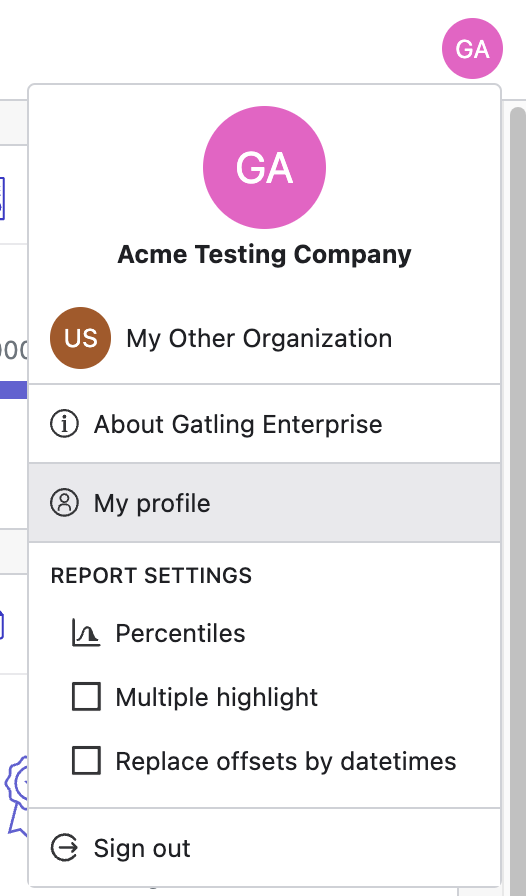
To access your profile at any time click your name in the top right of the screen, then click the My profile button.
Managing your profile
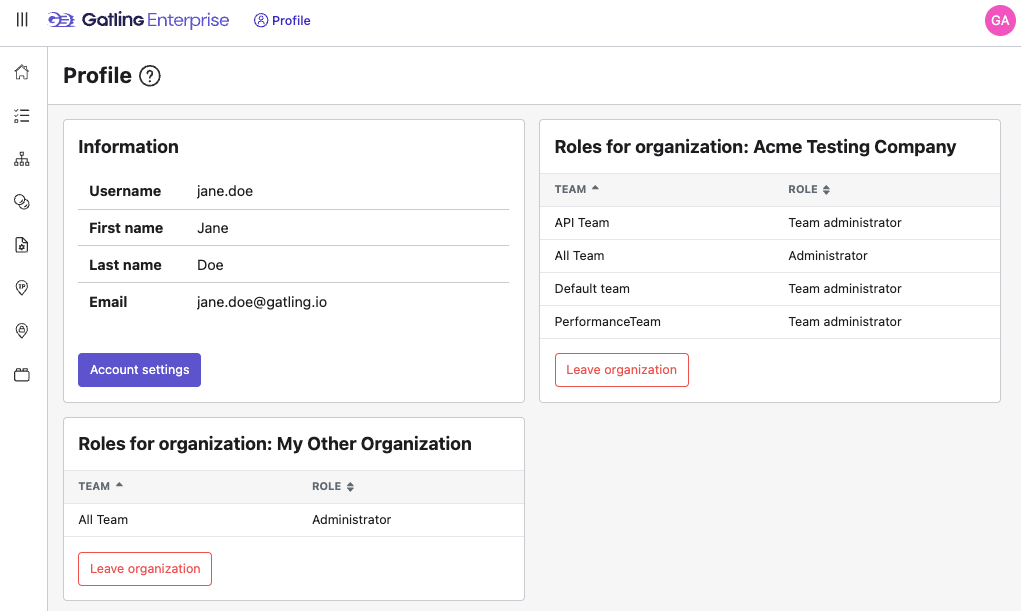
The profile page contains the sections below. Some depend on your role:
- Identity: shows your first name, last name, username, and email, with a link to edit them in your account settings.
- Email Notifications (This section is available to Team admins only.): your email preferences, including the Daily Alerts toggle
- Organization roles: your organization and team-level roles for your organization(s)
From this page, you can view and modify your account settings, manage your email notifications, and leave an organization.
View and modify your account settings
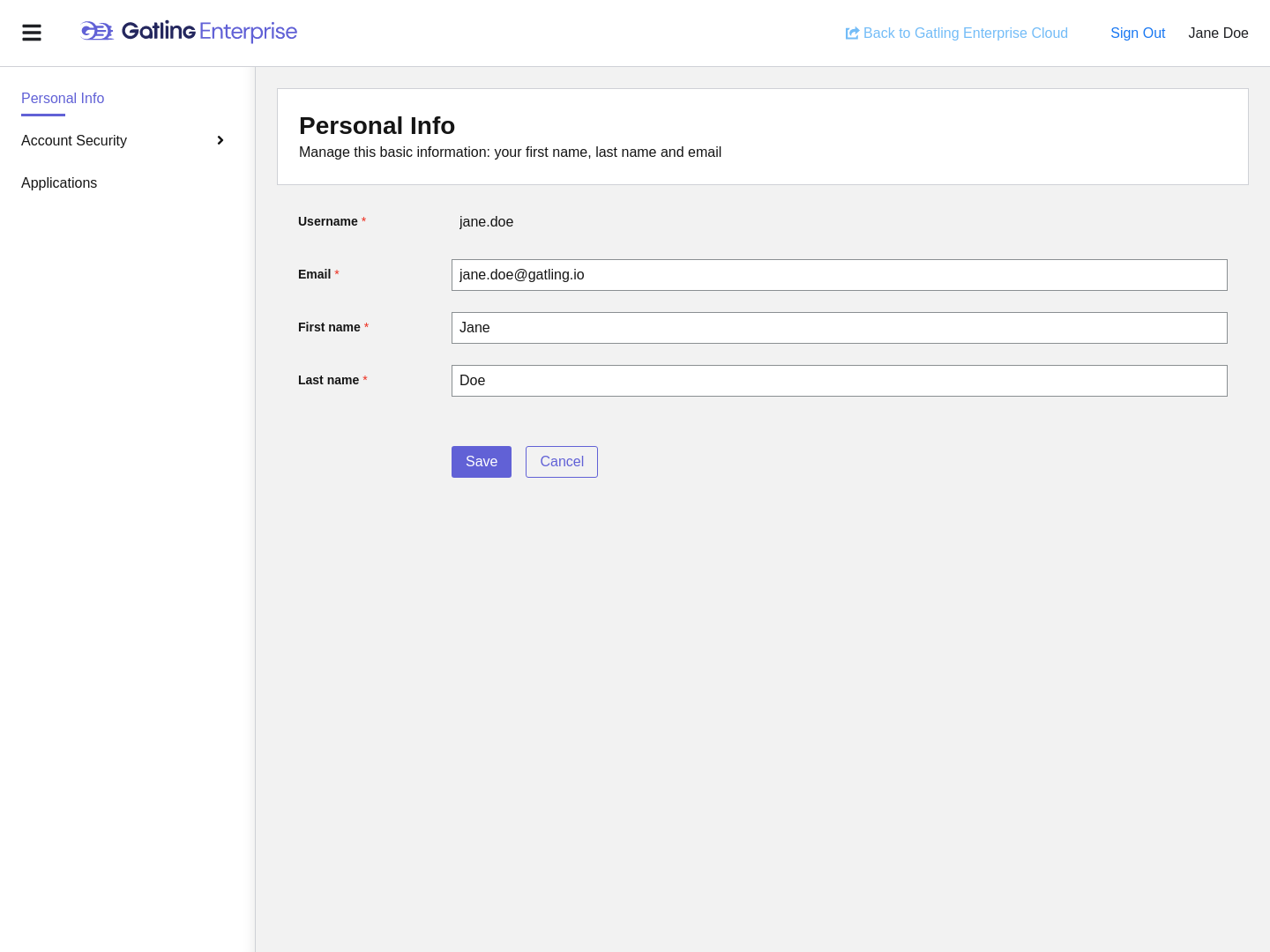
To modify your account settings, click the account settings link in the Identity section.
Update your personal information
In the Personal info screen you can modify your:
- Email address
- First name
- Last name
After you have updated your information, click Save to update your account.
Manage your account security
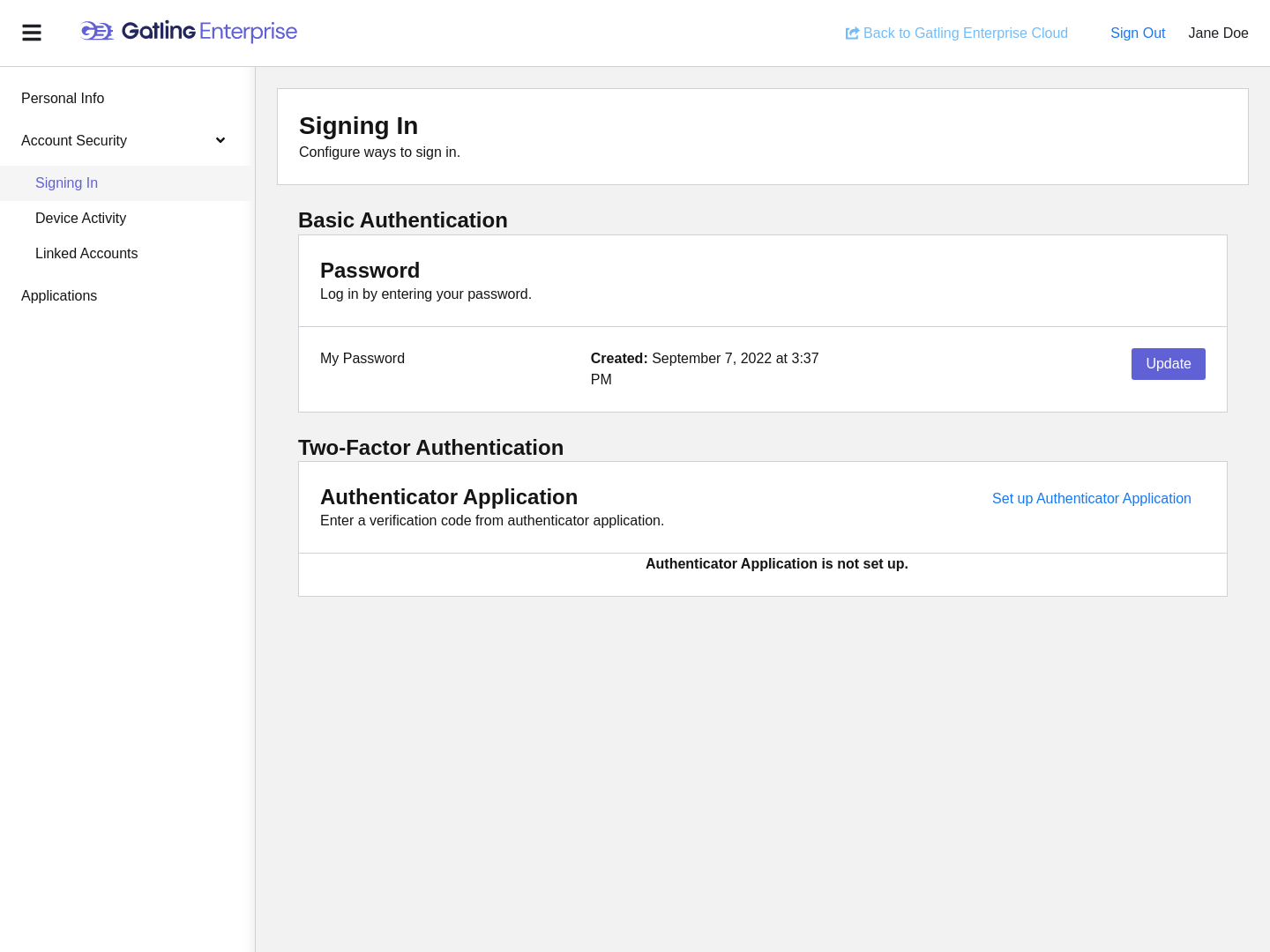
In the Account security screen, you can:
- Update your password
- Setup two-factor authentication
- See signed-in devices
- Manage 3rd party logins such as GitHub and Google social login
Manage your email notifications
In the Email Notifications card, use the Daily Alerts toggle to subscribe to or unsubscribe from the Daily Alerts email.
This section is available to Team admins only.

Permanently leave an organization
You can permanently leave an organization by clicking the Leave button in the header of the organization’s card in the Organization roles section.