

Create tests from packaged code
Create tests from packaged code in Gatling Enterprise Edition.
Creating a test-as-code test
Click the Create a test button on the Tests view or the Get started with test-as-code tests button if the Tests view is empty. This opens the test creation modal:
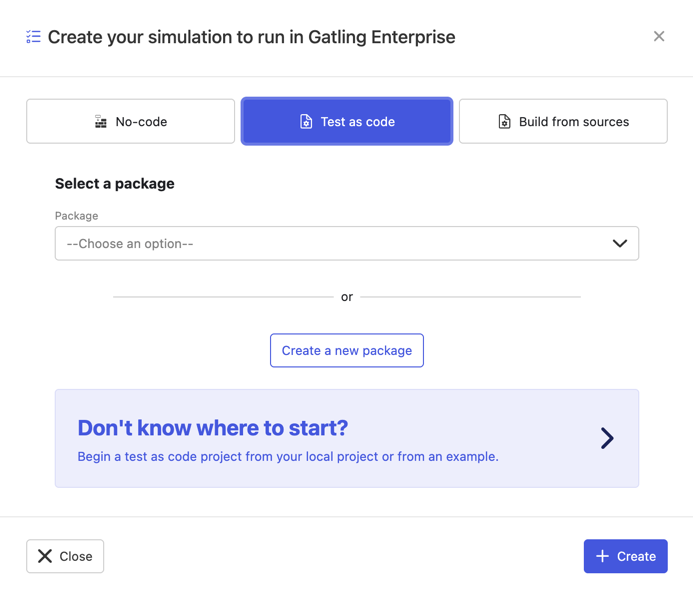
Once you’ve selected your package, click the Create button to configure your test
Set the general parameters
In this step, define the test’s general parameters:
- Name: the name that will appear in the tests table.
- Package: the actual package the test runs.
- Test: the test to run from this package.
Configure the load generator locations
Configure the Gatling Enterprise Edition load generator location(s).
You can use:
- managed locations provided by Gatling Enterprise Edition
- private locations
- dedicated IP addresses for your managed load generators.
Managed location load generators have the following specifications:
- 4 cores
- 8GB of RAM
- bandwidth up to 10 Gbit/s
Gatling Enterprise Edition managed locations are available in the following regions:
- AP Pacific (Hong kong)
- AP Pacific (Tokyo)
- AP Pacific (Mumbai)
- AP SouthEast (Sydney)
- Europe (Dublin)
- Europe (London)
- Europe (Paris)
- SA East (São Paulo)
- US East (N. Virginia)
- US West (N. California)
- US West (Oregon)
If you want to use private locations, please refer to the specific documentation.
To get the best results from your test you should select the load generator locations that best match your user base.
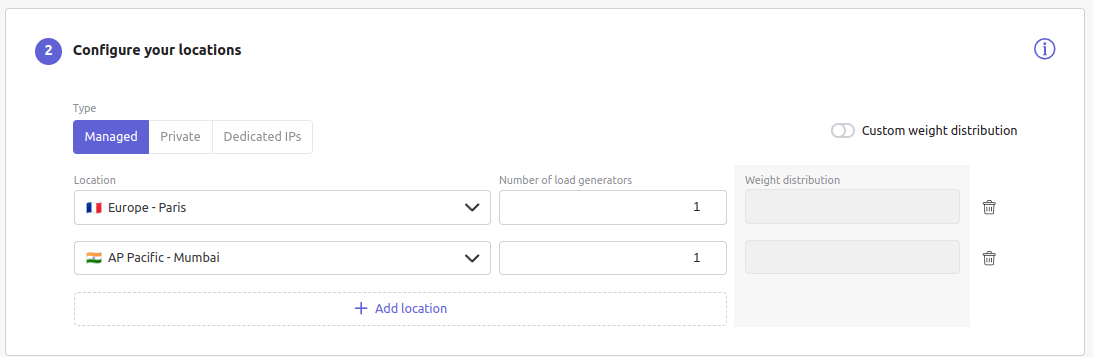
- Location: defines the locations to be used when initiating the Gatling Enterprise Edition load generators.
- Number of load generators: number of load generators for this location.
- Weight distribution: by default, every load generator will produce the same load. If enabled, you must set the weight in % for each location (e.g. the first location does 20% of the requests, and the second does 80%). The sum of all weights must be 100%.
You can add several locations with different numbers of load generators to run your test.
After this step, you can save the test, or continue with optional configurations.
Apply optional configurations
The following configurations are optional, further details about the available options and how configure each option are available in the Optional configurations for tests documentation.
- Set load generator parameters
- Set acceptance criteria
- Specify a time window
- Add stop criteria
Save and launch your test
Once you’ve configured your no-code test, click the Save and Launch button to save your test and start the test.