

AI Trends Analysis
AI Trends Analysis reads your last 10 runs and produces a structured report covering health findings, cross-run insights, and concrete recommendations so you can spot what's stable, what's drifting, and what to act on before the next run.
Overview
The Trends page shows metric charts across your last runs: response times, error rates, and more. It’s useful for spotting patterns over time, but making sense of what’s normal vs. what needs attention still takes experience.
AI Trends Analysis adds an AI-generated report on top of those charts. Click the button, and get a structured reading of what’s stable, what’s drifting, and what stands out across your last 10 runs.
How to use it
- Open a test and select Trends in the left panel.
- Click on the Analyze with AI button in the AI trends analysis block.
- The report appears above the trends charts.
- Once generated, the report persists. If new runs are added, the report is marked as outdated and Analyze with AI becomes available again to regenerate it.
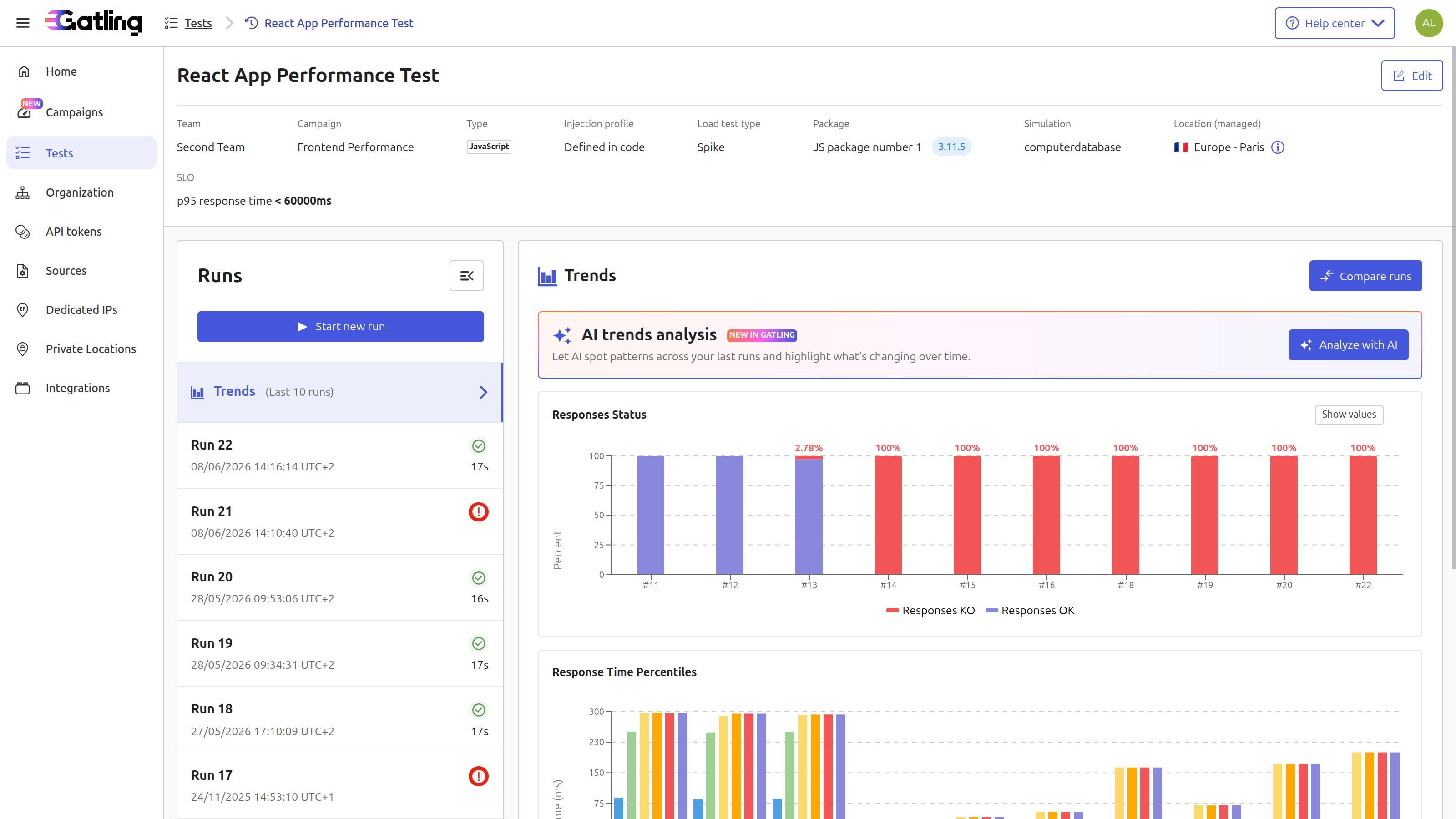
What you get
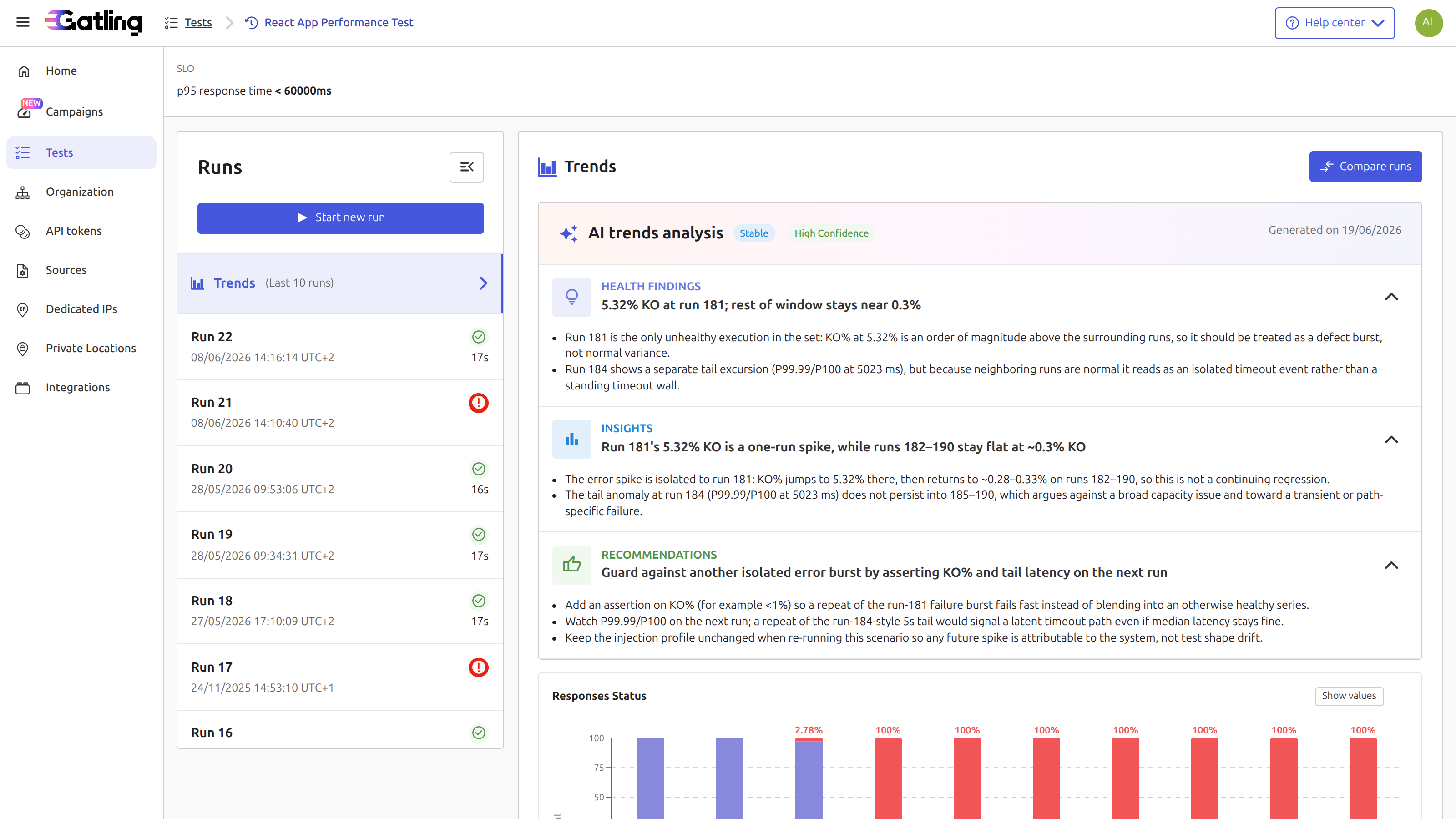
The report is structured around three blocks:
Health Findings opens with a one-sentence summary of the most significant health signal across the window, followed by observations about runs that behave differently from the rest: error spikes, tail latency anomalies, or outliers worth investigating.
Insights opens with a one-sentence interpretation of what the findings mean, followed by a more detailed read of the patterns: whether an anomaly is isolated or recurring, whether a spike looks like a defect burst or a structural issue.
Recommendations opens with a one-sentence action focus, followed by 2 to 4 concrete steps to apply before the next run assertions to add, metrics to watch, or configuration to keep stable.
The report also includes a verdict (Stable, SomeIssues, or Degrading) and a confidence level (Low, Medium, or High), reflecting both the overall trends health and how much signal was available to reason from.
Notes
- The analysis always covers the last 10 valid runs of the test, regardless of which run you’re currently viewing.
- The report reasons exclusively about runs in that window, it does not compare against other tests or historical baselines outside the window.
- Reports are persisted. The Analyze with AI button is only available again once new runs have been added since the last analysis.