Introduction to tests in Gatling Enterprise Edition
Run tests on Gatling Enterprise Edition.
Managing Tests
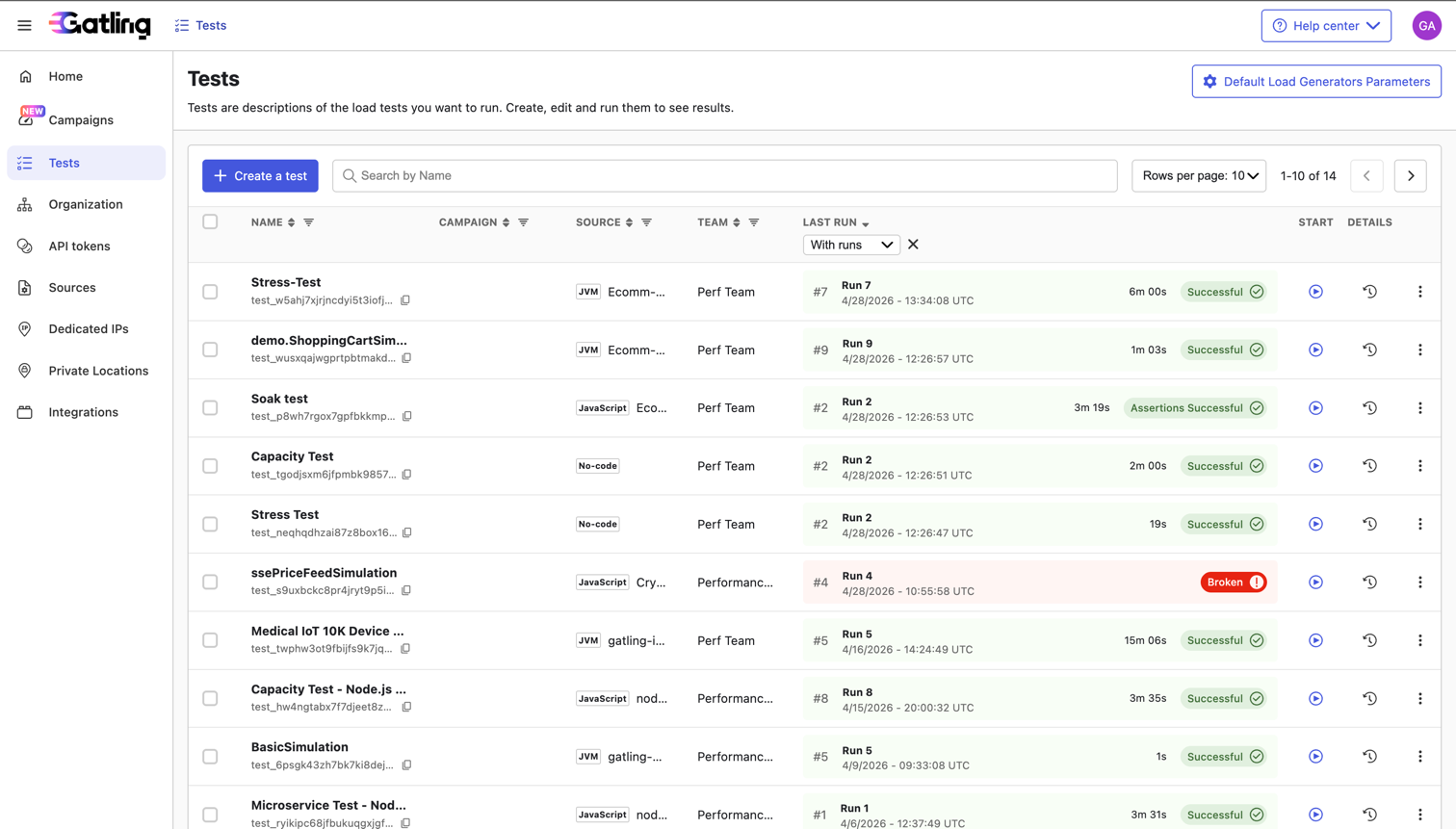
To access the Tests section, click on Tests in the navigation bar.
The Tests view contains all the tests configured by your organization and the results of their last run. From the Tests view, you can:
- Create a new test.
- Access existing tests.
- Access the last run of a test.
- Start a new run of a test.
- Edit a test.
- Duplicate a test.
- Copy a test ID.
- Delete a test.
- Set the default load generator parameters.
You can also sort and filter the tests by:
- name,
- sources,
- team, and
- last run.
Create a test
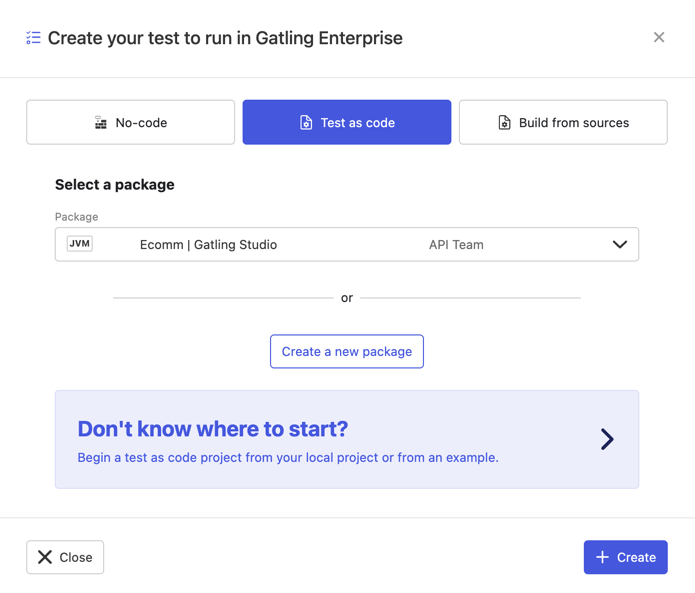
To create a new test, click on the Create a test button in the Tests view. This opens the test creation modal, where you can choose from three options:
- No-code: Create a test without writing any code.
- Test-as-code: Create a test from a packaged test.
- Build from a Git repository: Create a test from a git repository.
Each option has its own dedicated documentation page that explains how to configure the test. You can access these pages by clicking on the links above or from the table of contents on the left side of this page.
Access existing tests
To access an existing test, click on its name in the NAME column in the Tests view. This will take you to the test details page, where you can view its configuration, results, and other relevant information.
Access the last run of a test
To access the last run of a test from the tests table, click on the LAST RUN link, which is shaded depending on the run outcome (e.g. green for successful runs). This takes you to the last run results, where you can view the performance metrics and other relevant information.
Start a new run of a test
To start a new run of a test, click on the Start Test button in the START column in the Tests table. This opens a confirmation modal, where you can launch the new run.
Edit a test
To edit a test, click on the kebab menu at the far right side of the Tests table. Click the Edit test button to edit the test configuration. This opens the test creation modal, where you can modify the test’s name, package, and other parameters.
Duplicate a test
To duplicate a test, click on the kebab menu at the far right side of the Tests table. Click the Duplicate test button to create a copy of the test. This opens the test creation modal, pre-filled with the duplicated test’s parameters. You can then modify the parameters as needed and save the new test.
Copy a test ID
To copy a test ID, click on the kebab menu at the far right side of the Tests table. Click the Copy test ID button to copy the test’s unique identifier to your clipboard. This is useful for referencing the test in API calls or other contexts.
Delete a test
To delete a test, click on the kebab menu at the far right side of the Tests table. Click the Delete test button to remove the test from the list. A confirmation modal will appear to confirm the deletion. Once confirmed, the test will be permanently removed.
Default load generator parameters
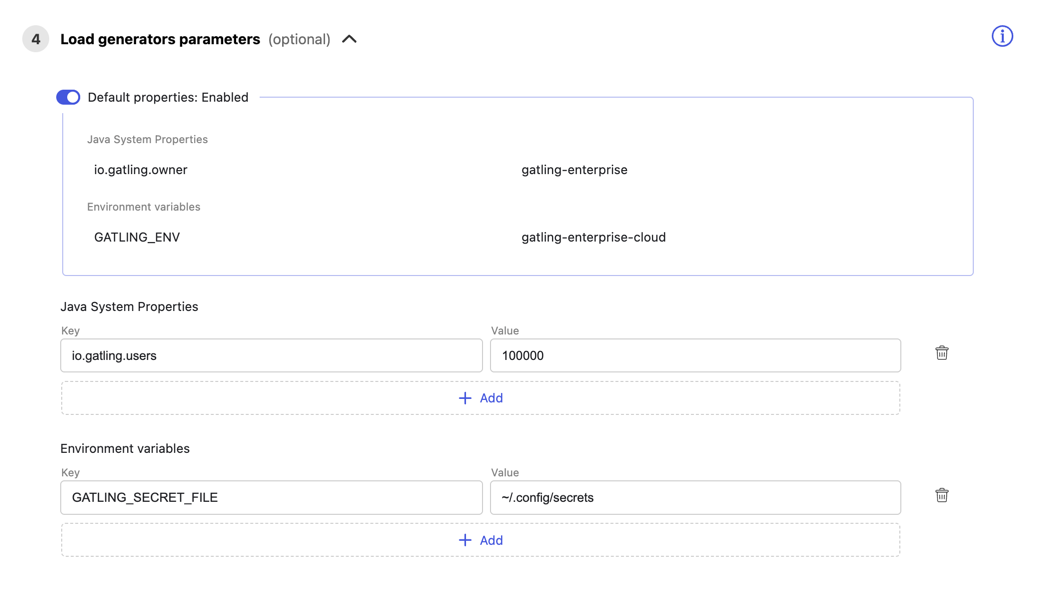
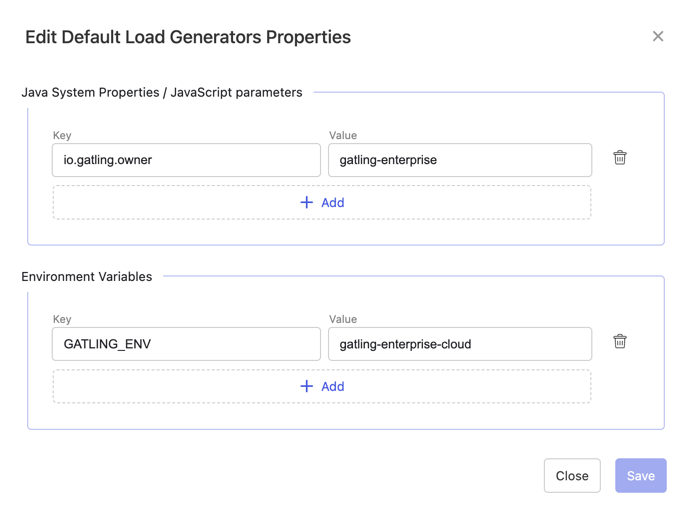
Default load generator parameters contain every Java system property or JS parameter and environment variable used in your tests by default. Editing these properties propagates to all tests. You can access the form by clicking the button in the top right corner of the Tests view.
If you want specific properties for a test, you can ignore the default properties by unchecking the Default properties box when creating or editing the test: