

Organizations
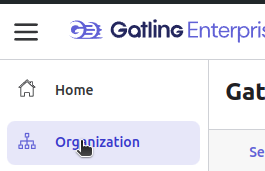
To view details about your organization, click on the Organization settings button or on the Organization menu item.
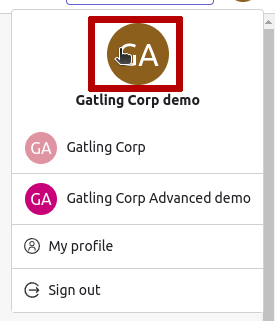
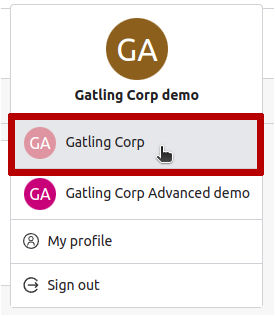
If you’ve been invited to multiple organizations, you can switch between them by clicking on the organization name in the top right corner.
Users
Depending on your role, this section shows all users or only administrators in your organization.
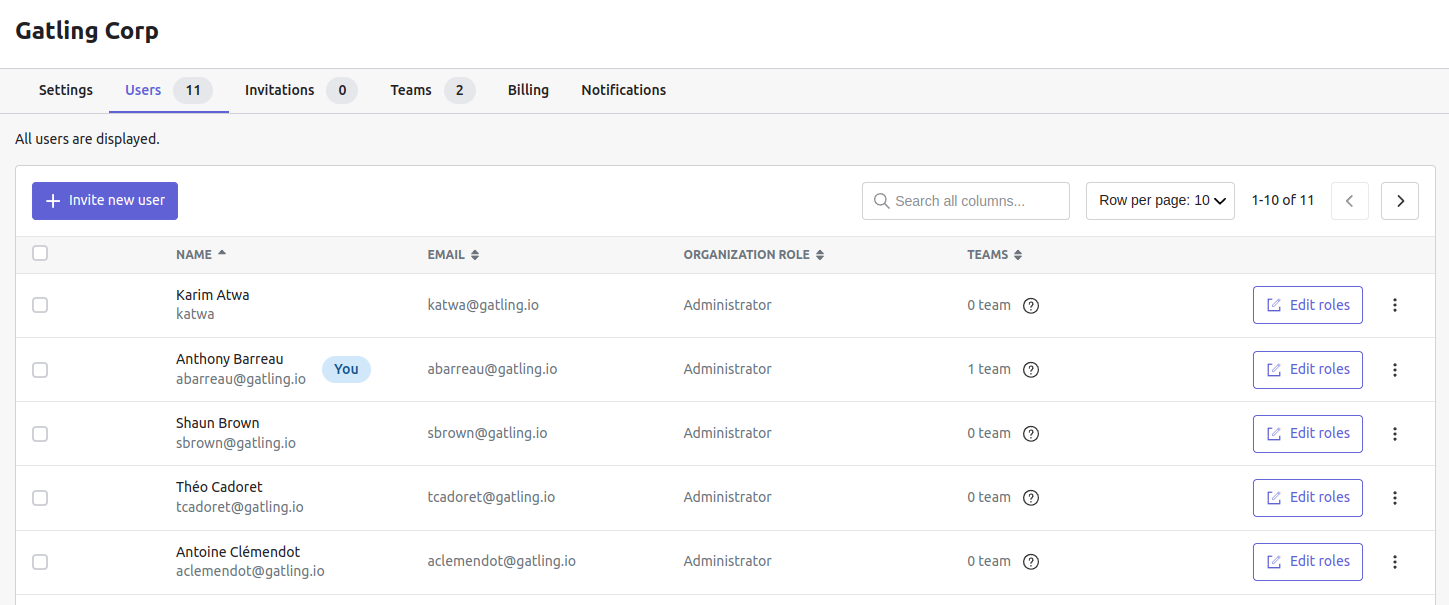
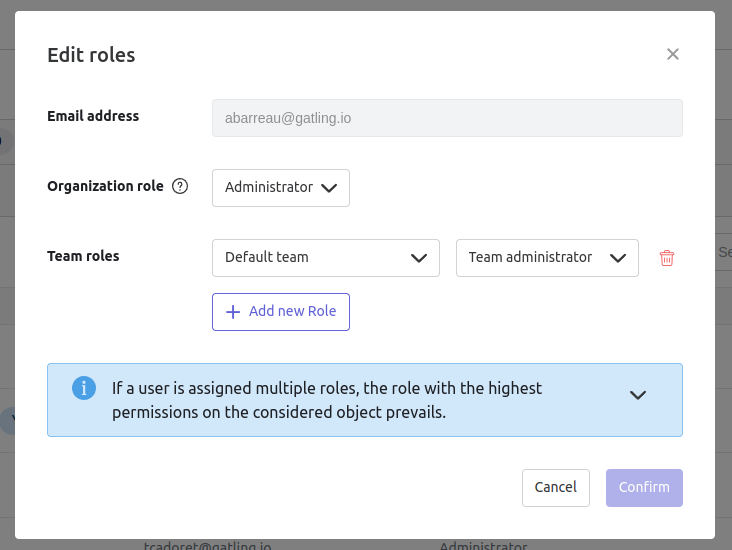
If you are an administrator, you can edit the roles of each user using the Edit roles button:
Teams
See and manage the teams you belong to, including details on members, credit consumption, and quotas.
For more details on viewing teams and setting quotas, see the Teams page.
Usage
The usage dashboard allows you to monitor credit consumption daily, monthly, and by team.
Displayed data can be downloaded as a CSV file.