Billing
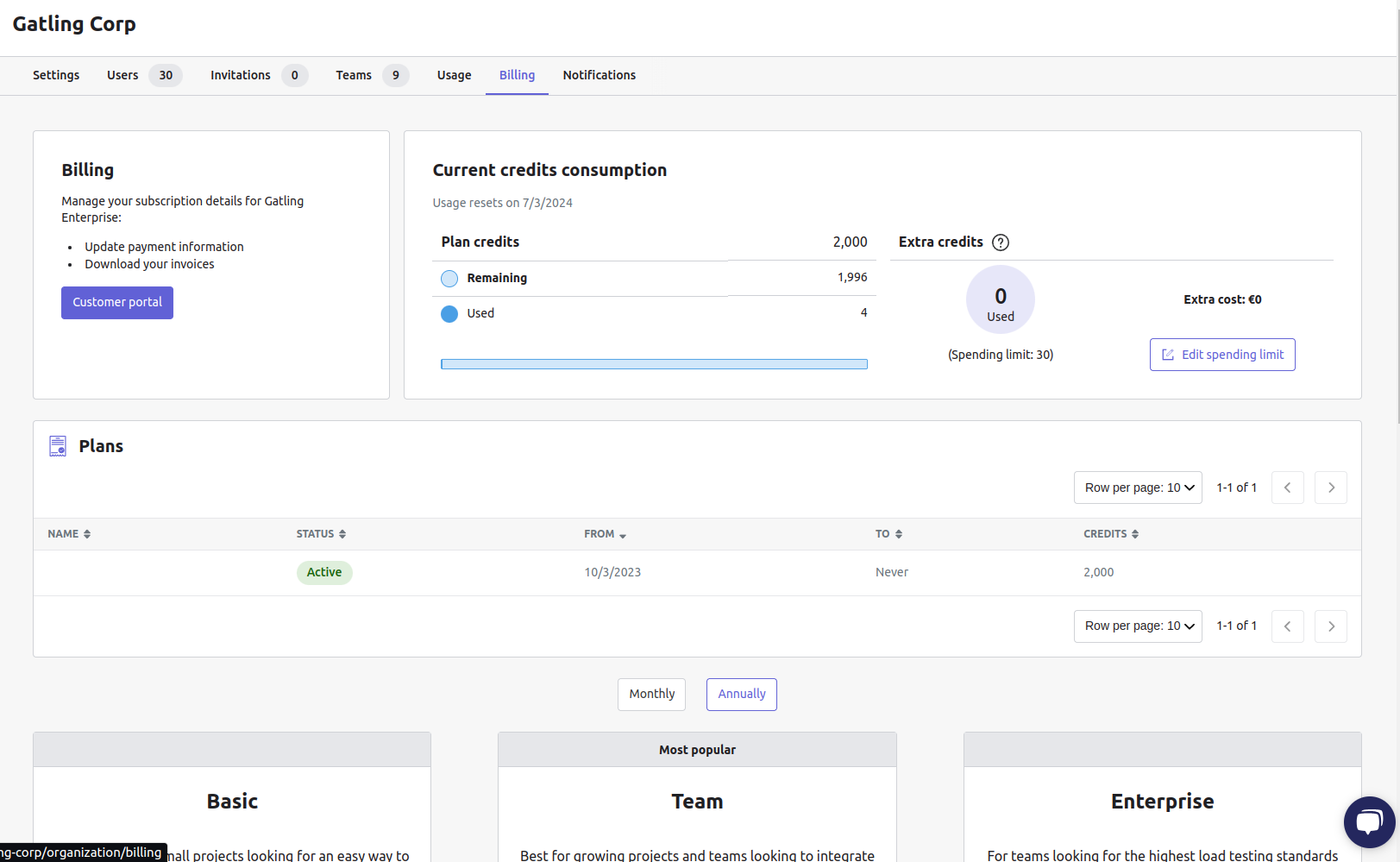
Manage your organization's billing settings, credit consumption, and subscription plans.
This page covers your billing and credit consumption settings and your subscribed plans history, if any.
Billing settings
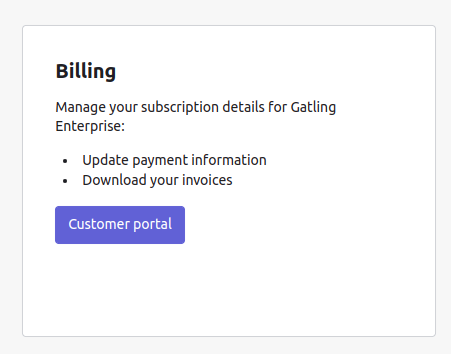
You can click the Customer portal to update your billing settings and download your invoices:
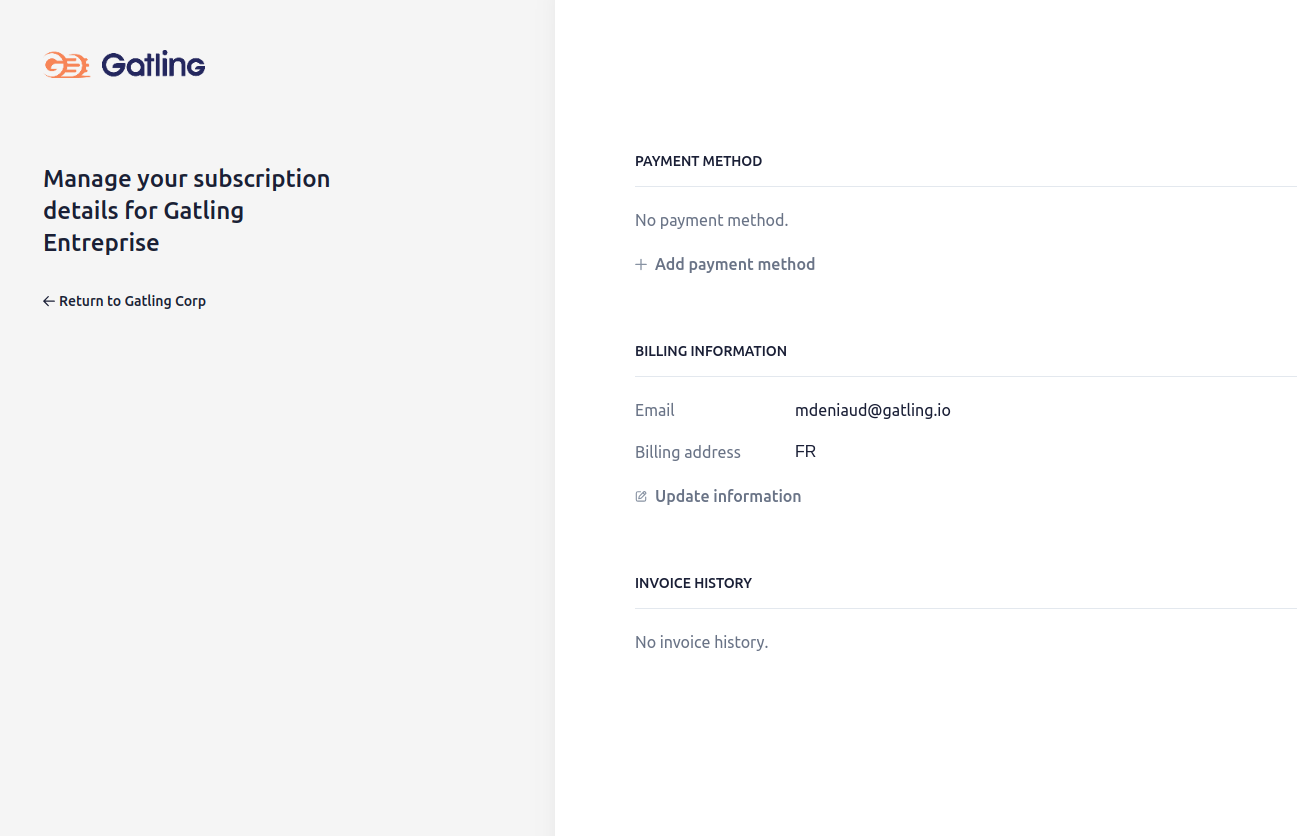
You will then be redirected to our Stripe portal:
Credits consumption
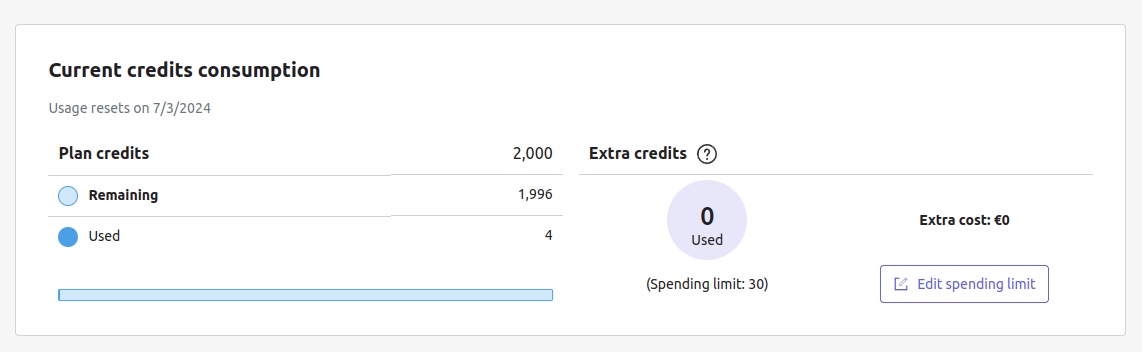
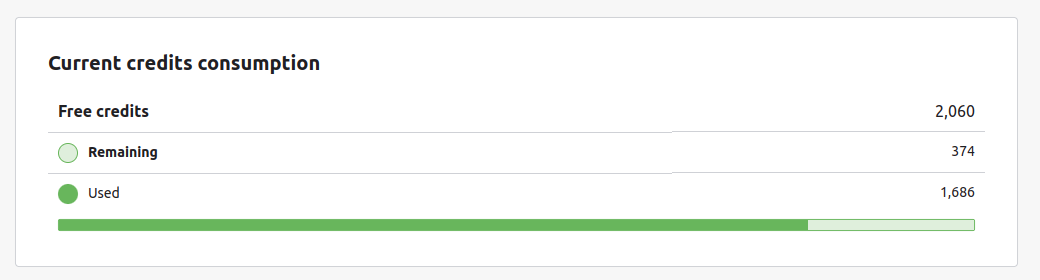
The amount of consumed and remaining credits are displayed for both paid and trial plans. For paid plans, the credits consumed are for your billing period:
Extra credits
When you approach the credit limits of your plan:
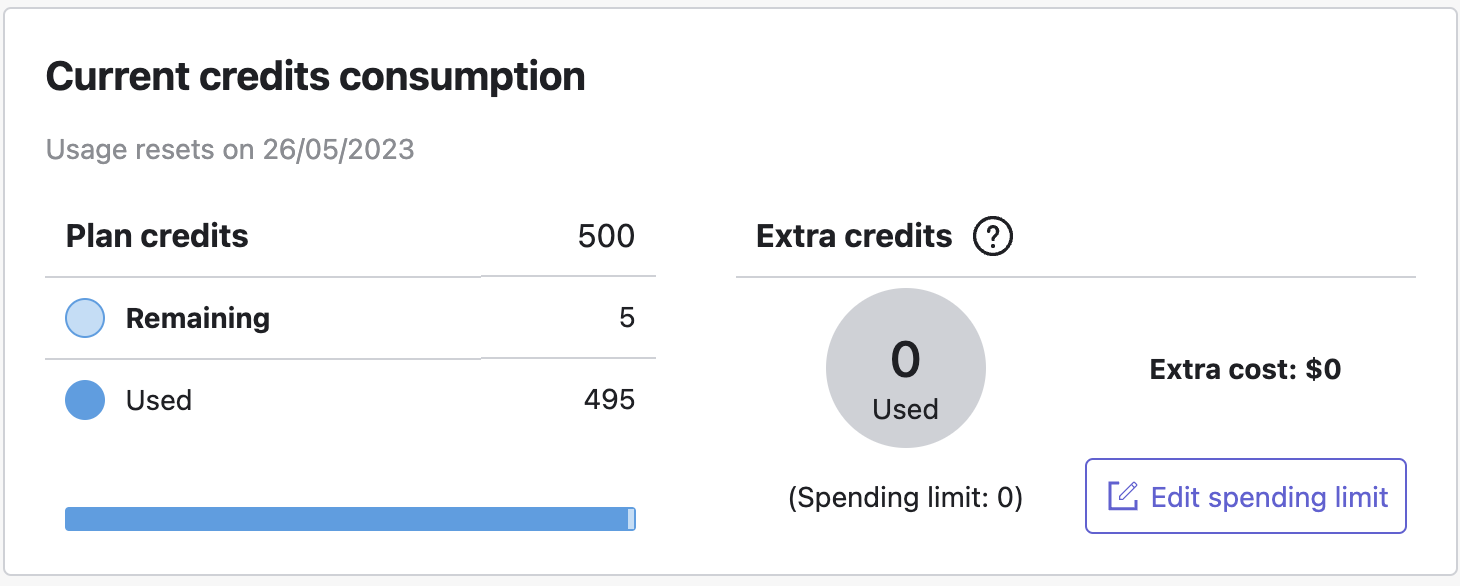
And you don’t want to wait the next filling of credit, you can activate extra credits by clicking button Edit spending limit
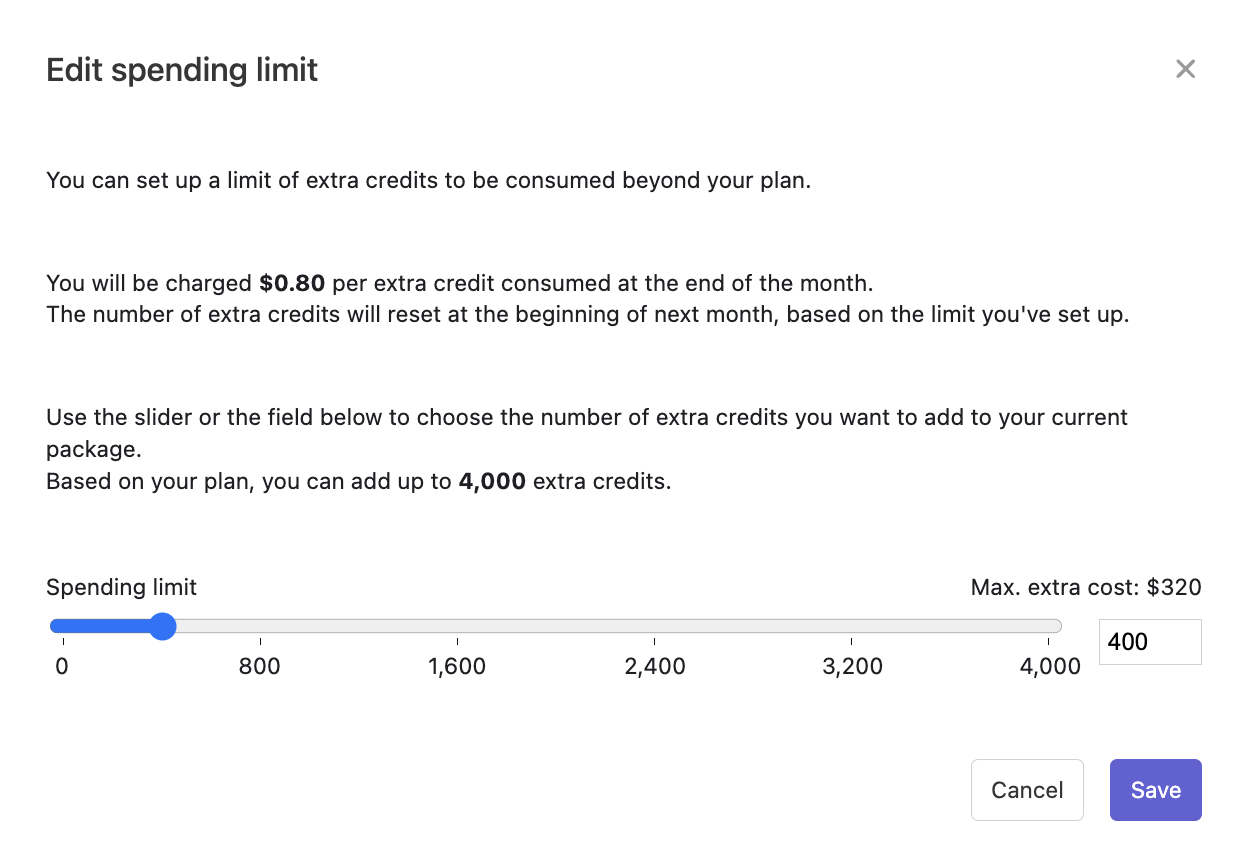
And set new extra credit limit.
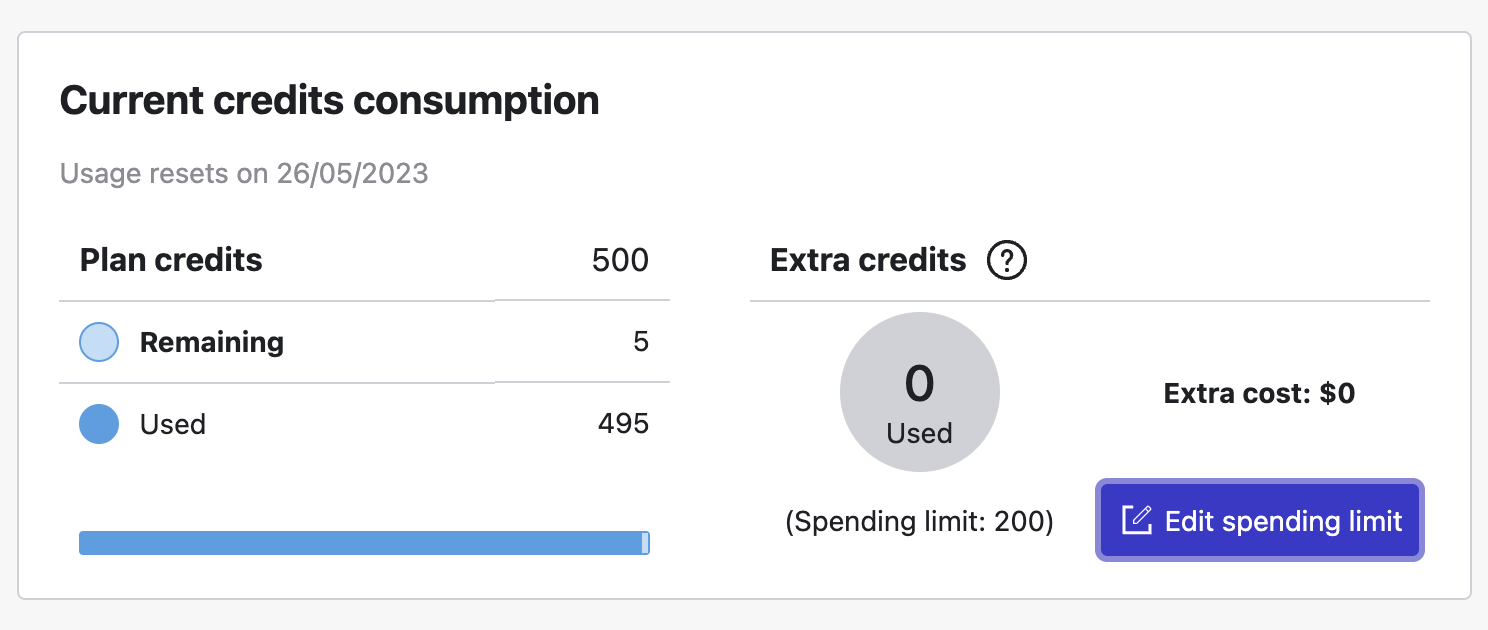
Now simulations – you couldn’t launch before – can run consuming extra credits.
Plans
Plans view history.
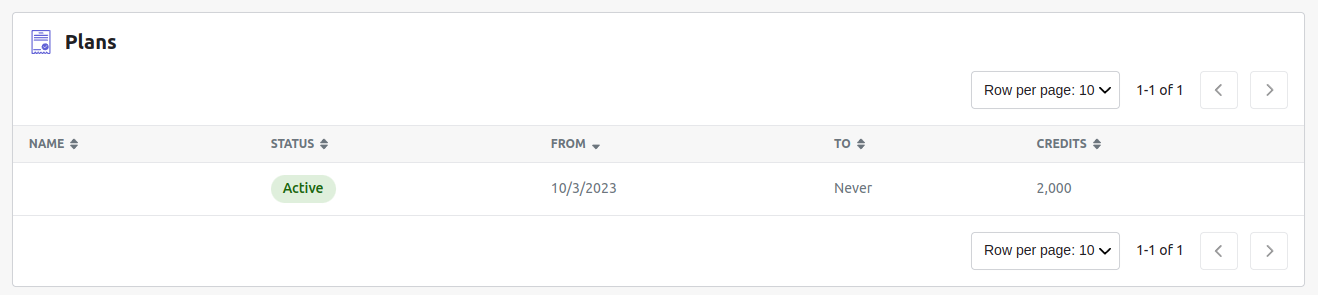
- Status - Current status of the payment plan: Terminated, Active, or PaymentFailure.
- From - Start date of the plan.
- To - End date of the plan, if there is one.
- Credits - Number of credits awarded each month by the plan.
Offers
Payment via Stripe
This page shows all available offers for your organization. You can choose the number of credits for your offer. A credit represents a minute of usage of one Gatling load generator.
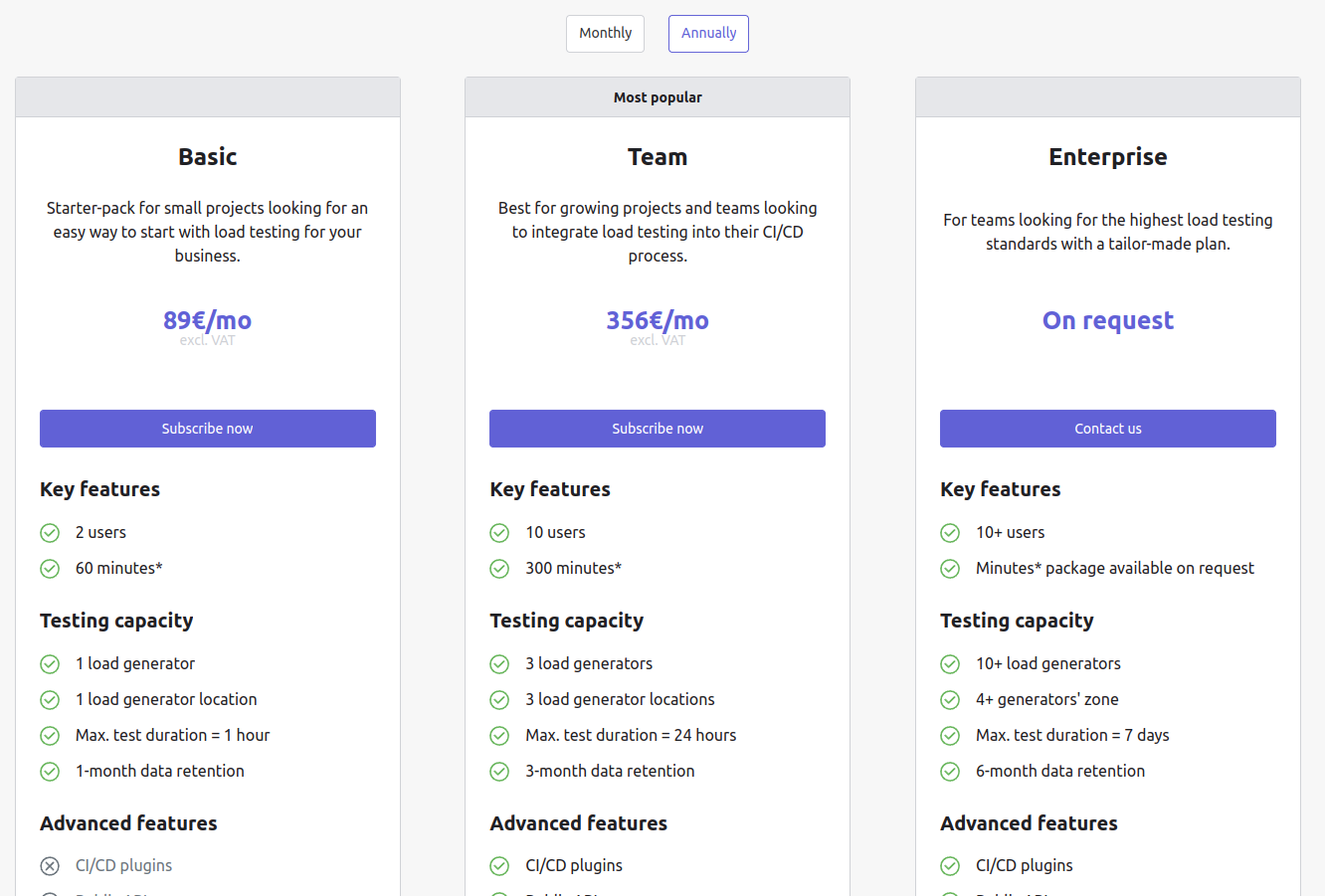
Click on the Subscribe now button in order to buy the desired offer via stripe. If you want to change your current offer, or buy the Custom one, please click on Contact us.
Payment via AWS Marketplace
After creating an Organization and an organization Admin user you can choose to subscribe to an offer via the AWS marketplace:
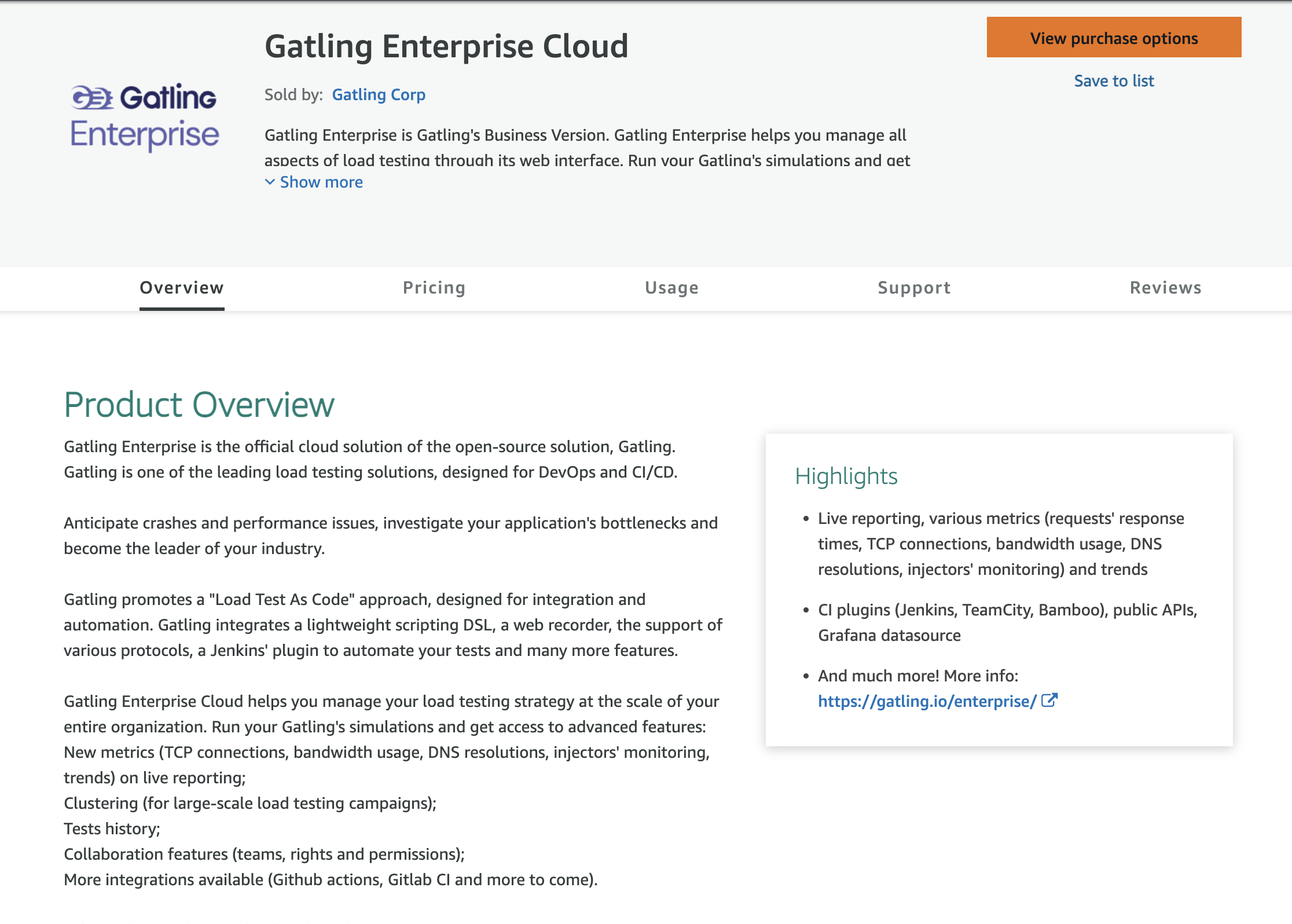
Select, among other options, the contract option:
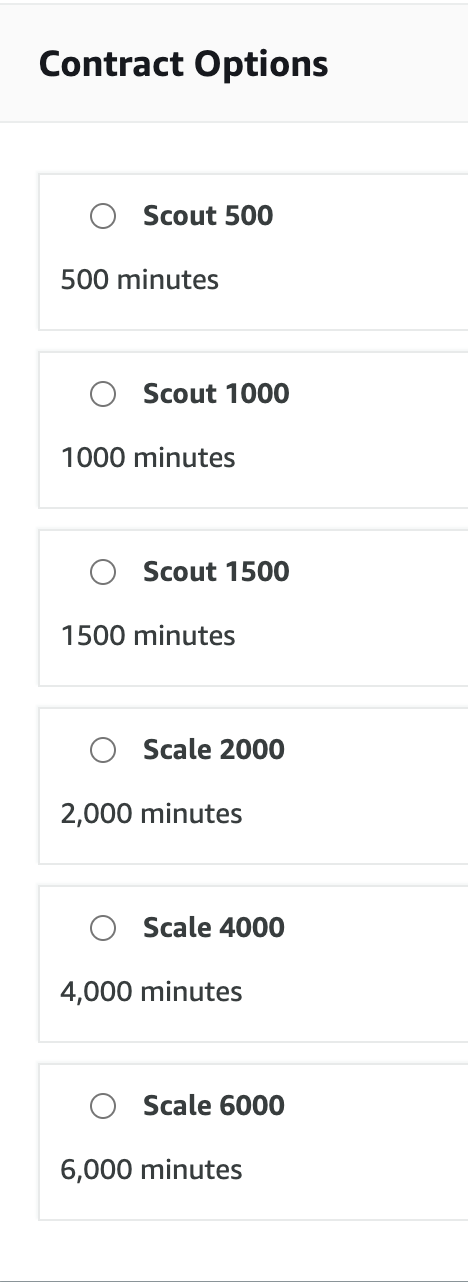
And click on Create contract:
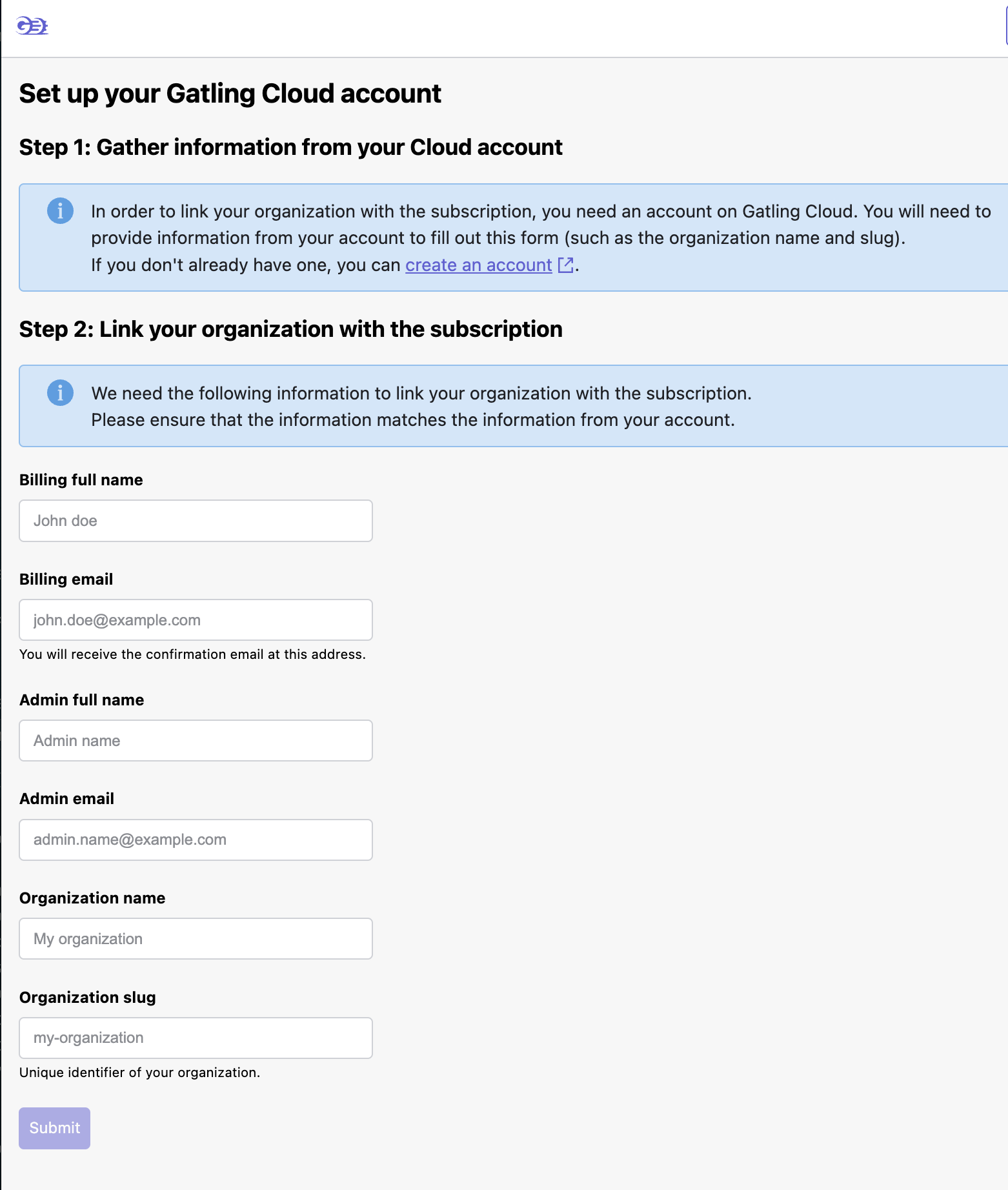
To finish setup, fill out the subscription form with current users and organization information: